|
To create a simple matrix report in PlanStreet, you can use a matrix visual to display data across multiple dimensions in a meaningful way. The matrix automatically aggregates data and allows users to drill down for more insights. Here are the steps to create a matrix report:
Steps for Creating a Matrix Report:
- In your report, look for the "+" sign just beneath the canvas and click on it to add a new page for your report.
- In the "Visualization" section, click on the Matrix icon.
- A blank matrix will appear on the canvas. The matrix is a report where you can define the required columns and rows for the report. In the "Visualization" panel, you'll see options for Columns, Rows, and Values.
- From the "Fields" section, drag and drop the values you want to display in rows, such as Case Name, Case Worker, Activity, etc.
- In the "Columns" section, you can drag fields from Intake, such as First Name, Email ID, City, State, or any other fields available in Intake or Cases.
- In the "Values" section, drag the fields for which you want to calculate values, such as Count of Case Notes, Count of Activities, and so on.
- Save the report, and your matrix report is ready.
Expanding and Collapsing Row Headers:
To expand or collapse row headers, you have two options. The first is through the right-click menu, which provides choices to expand a specific row header, the entire level, or everything down to the lowest level of the hierarchy. Similar options are available for collapsing row headers.
Stepped Layout with Matrix Visuals:
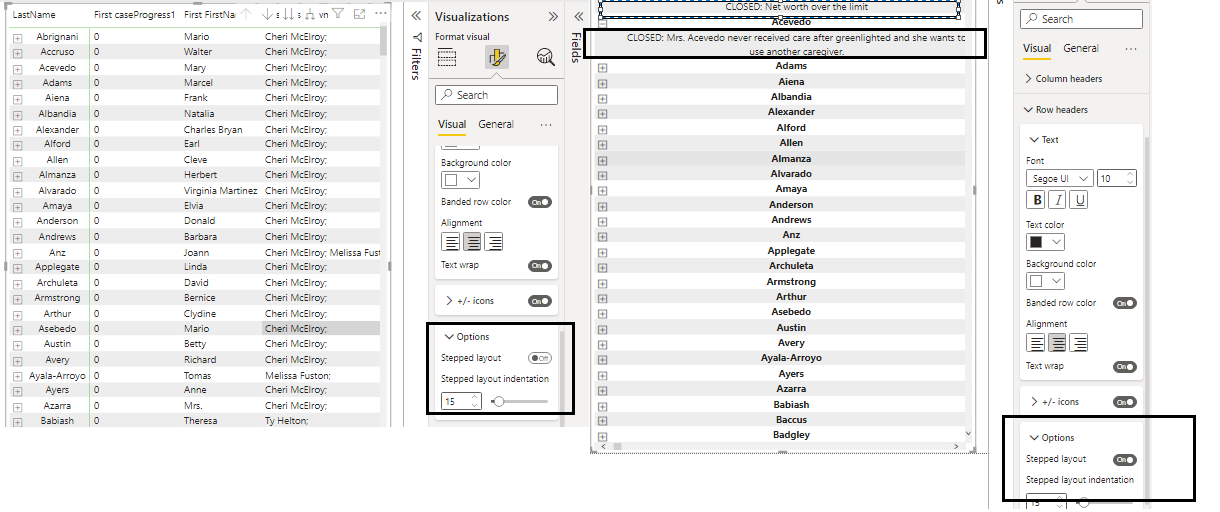
The matrix visual in PlanStreet supports a stepped layout, which automatically indents subcategories in a hierarchy beneath each parent, making it more organized.
Steps to Implement Stepped Layout:
- Select the matrix visual on your report page.
- In the "Format" section (the paintbrush icon) of the "Visualizations" pane, expand the "Row Headers" section.
- You'll find the "Stepped Layout" toggle that you can turn on or off to enable or disable the stepped layout. You can also adjust the "Stepped Layout Indentation," specifying the indentation amount in pixels.
|
|
|
