Purpose:
The Food Pantry module aims to efficiently manage the distribution of meals from different locations and donors, enabling better resource management.
Process:
Detailed information on each case is collected during intake. This information can then be processed by selecting the donor and case category, which helps categorize and manage the cases.
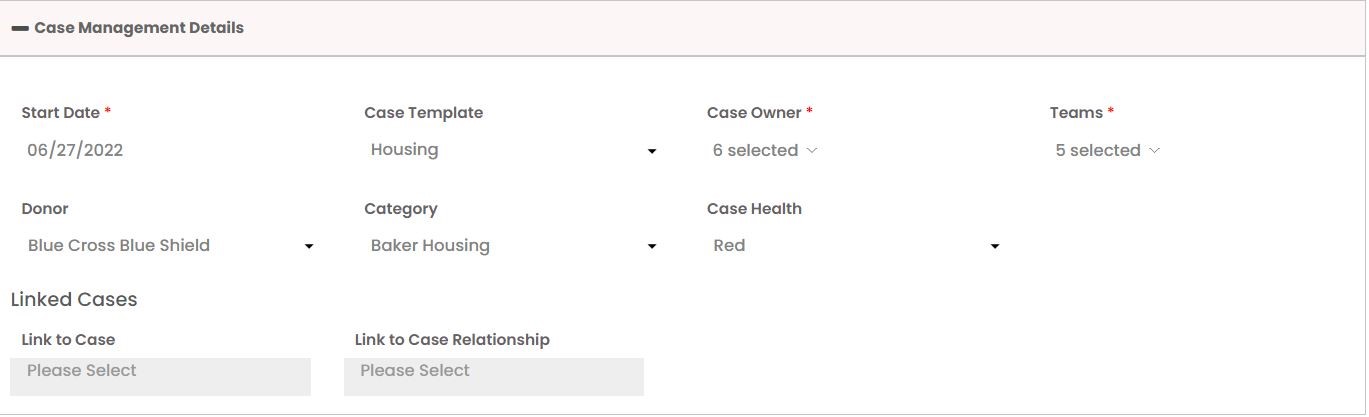
Accessing the Food Pantry Module:
- After updating the case details, navigate to the "Food Pantry" module. Ensure that you have the necessary permissions, which can be granted by the administrator.

Setting Up Permissions for Food Pantry:
- Go to settings and click on "Roles."
- Edit the roles by clicking on the three dots in the grid permissions.
- Search for "food" and select the permission for the food pantry. (Admin settings > Roles > Case Manager > Search Food > Check the permission box).
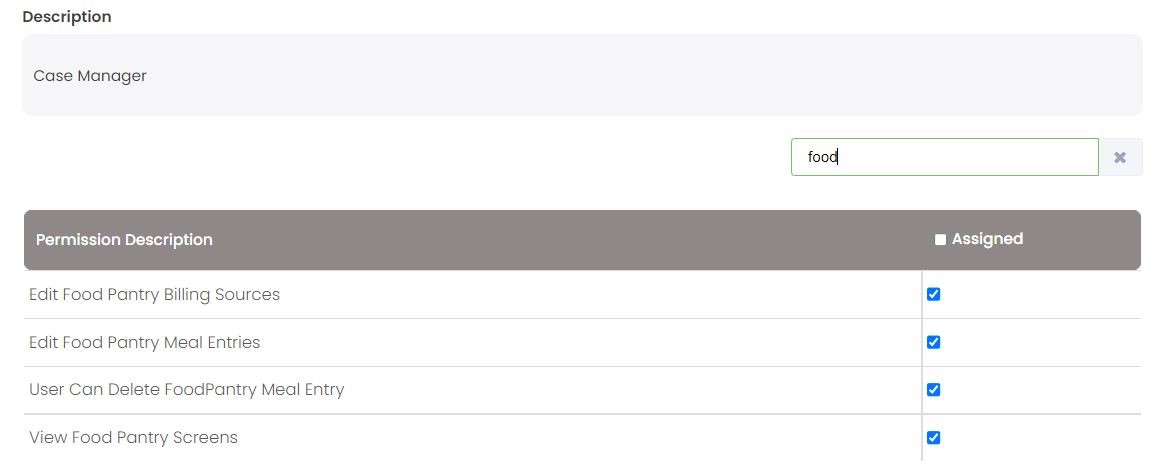
Using the Food Pantry Module:
- In the Food Pantry module, click on the "Add Meal Entry" option.

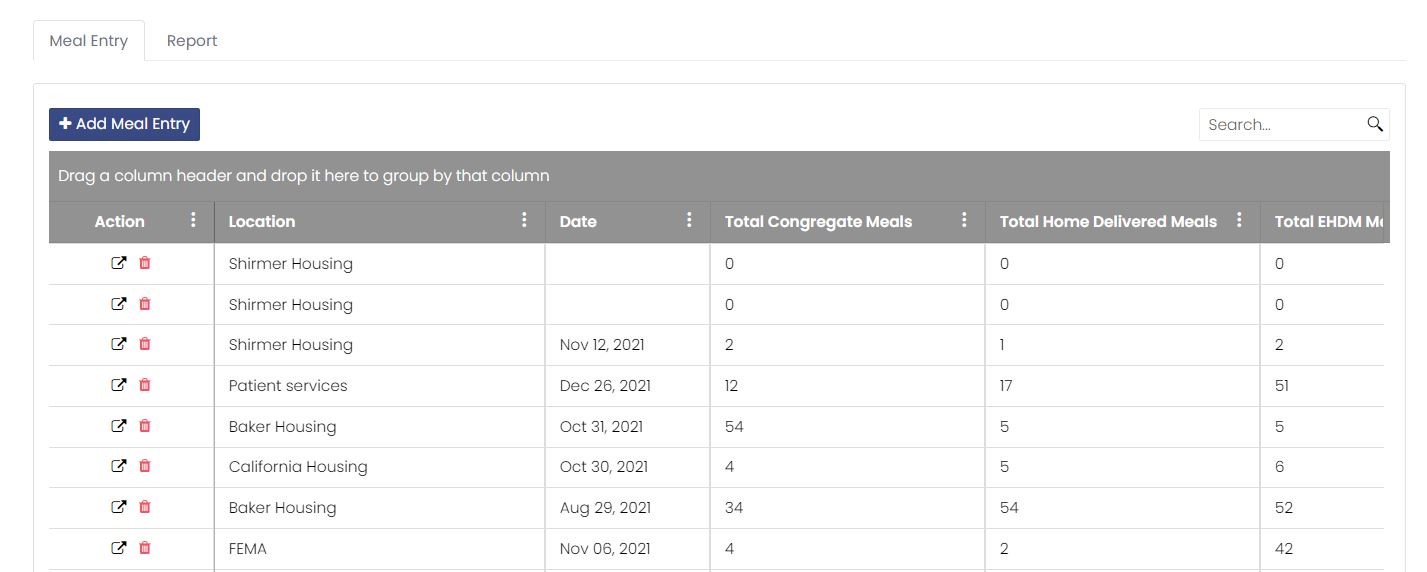
- Select a location from the dropdown menu to specify where the meal dispersion will occur.
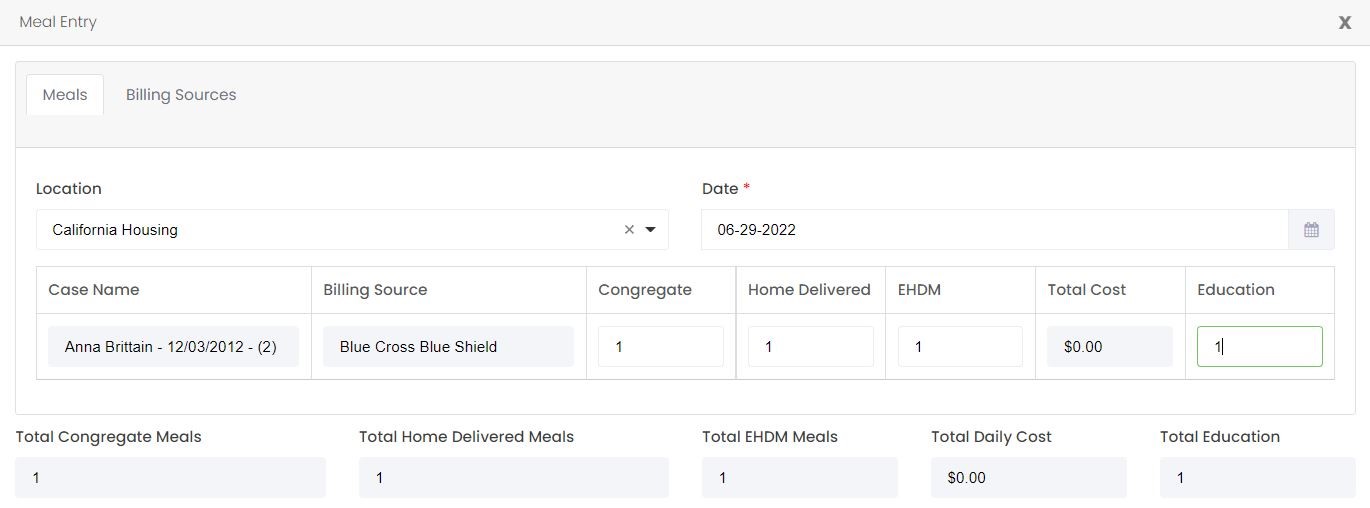
- Choose the date for the dispersion.
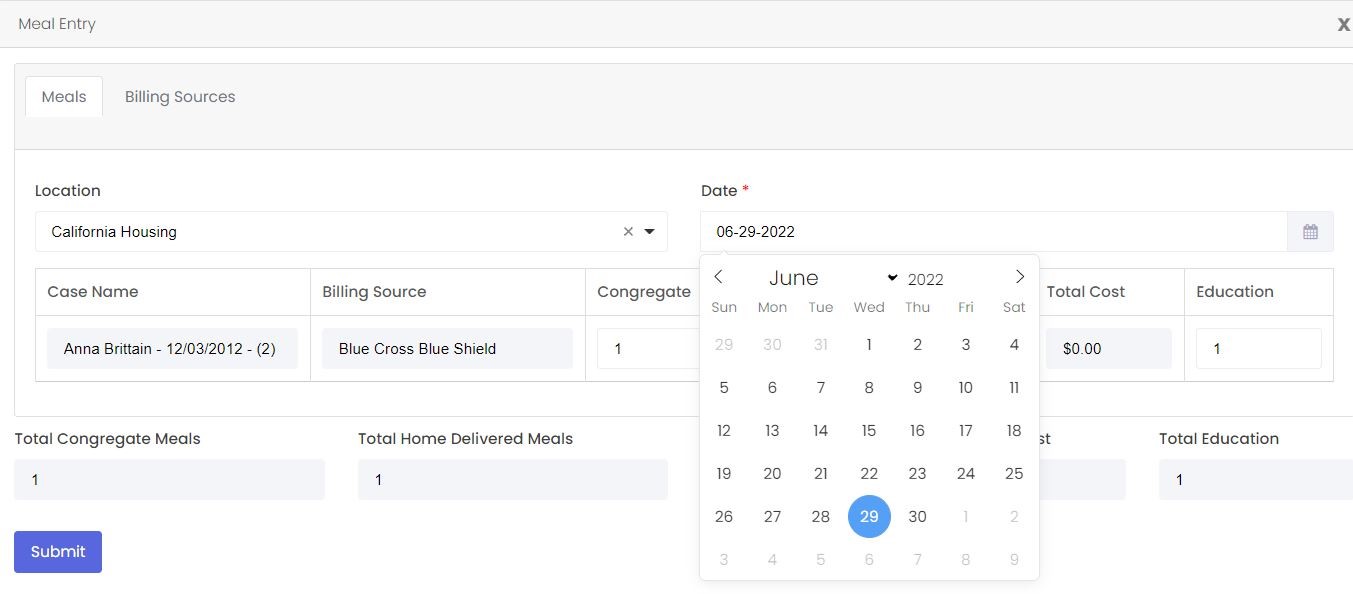
- Add meal entries, specifying the meal count for distribution, and then submit to save the data.
- In the data entry table, you will see columns for Billing Source (Donors) and Meal Types. Enter the number of meals for the cases enrolled in the selected location.

- Donors are added to the Donor Module and also in the Food Pantry admin screen.

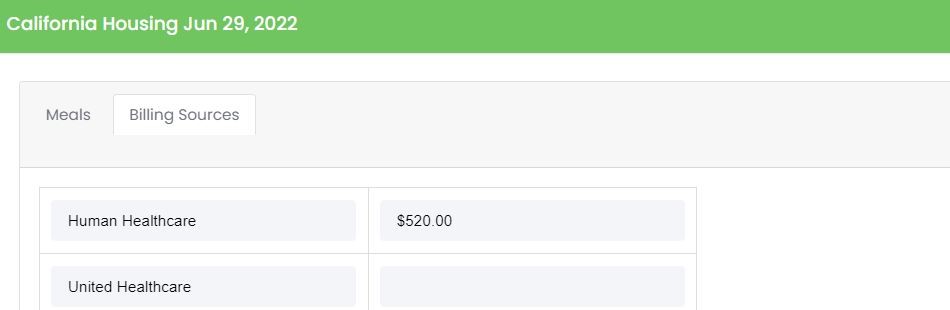
- You can add the billing source and the amount of each donation.
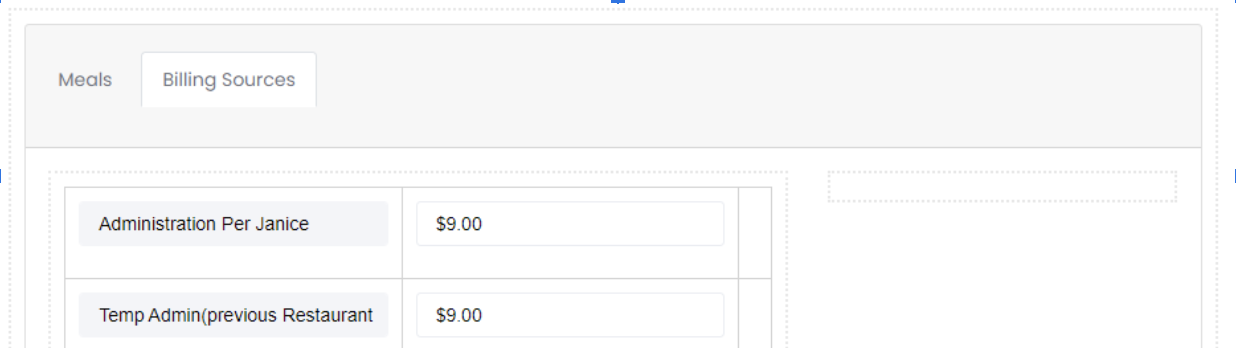
- Once all meal entries, as per the donors, are updated, click on "Submit" to complete the dispersion process.
Editing Entries:
- If needed, and with the appropriate edit permissions, entries can be edited by clicking the "Edit" button located in the top right corner of the meal entries screen.
Important Notes:
- In the case of multiple intakes, the latest intake will be visible to the cases in meal entries.
- Soft-deleted cases will not be shown in the Food Pantry module.
- In reporting, all cases with meal entries will be displayed, regardless of whether they are deleted or active.
|
